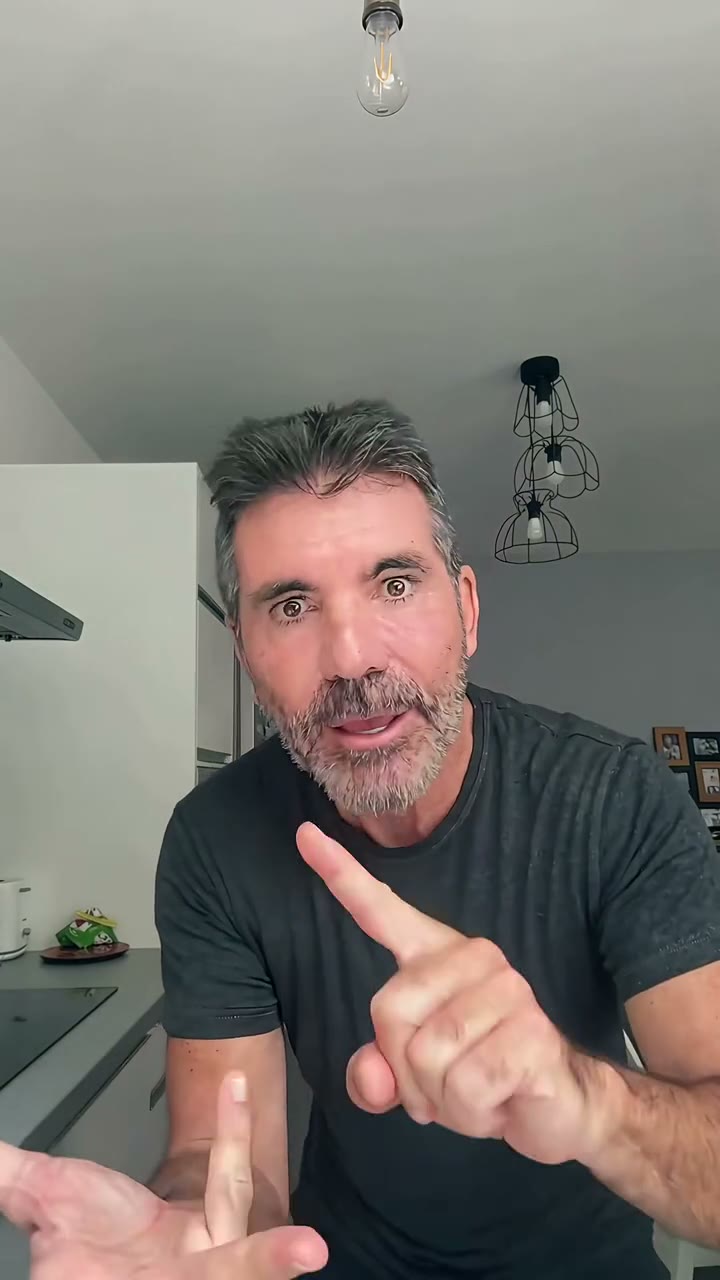
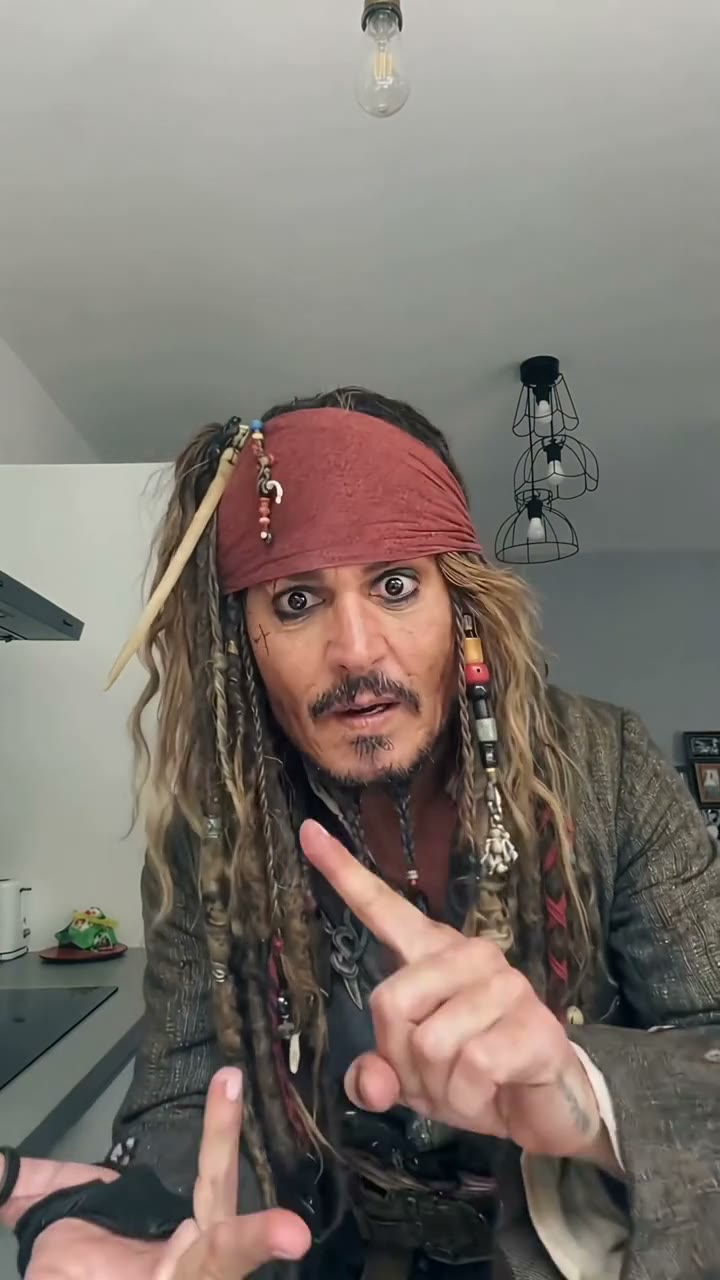
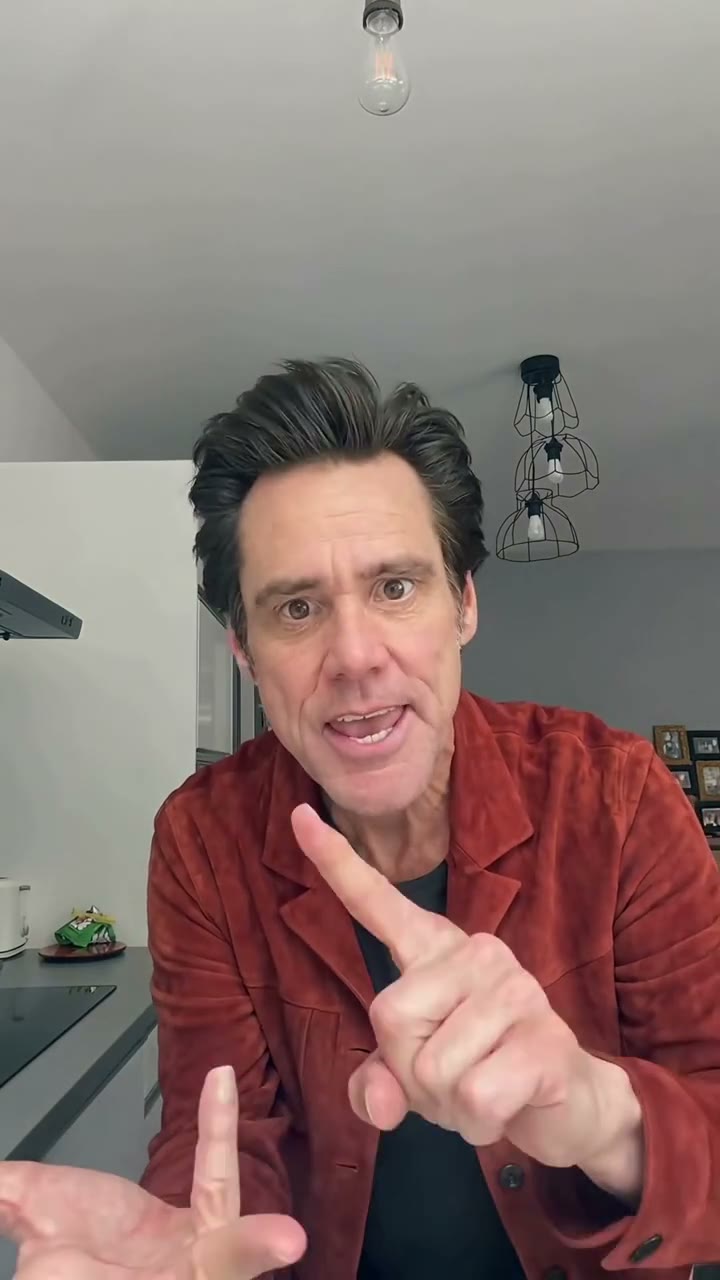
These reference clips show the dance style. They are not videos generated by this website.
1Upload a photo
2Generate your video
3Download and share
Turn a photo into an Angry Dance video
Angry Dance is a photo-to-video tool for the exaggerated, playful argument dance seen in short videos. The idea is simple: start with one clear photo and use a fixed dance reference, instead of writing a prompt or editing every move yourself.
Watch the four reference clips above to understand the gestures, camera movement and overall mood. Your photo supplies the person; the reference supplies the motion. AI can change faces, hands, clothes and backgrounds, so the examples are a style reference rather than a promise of an identical result.
All video examples
These reference clips show the dance style. They are not videos generated by this website.
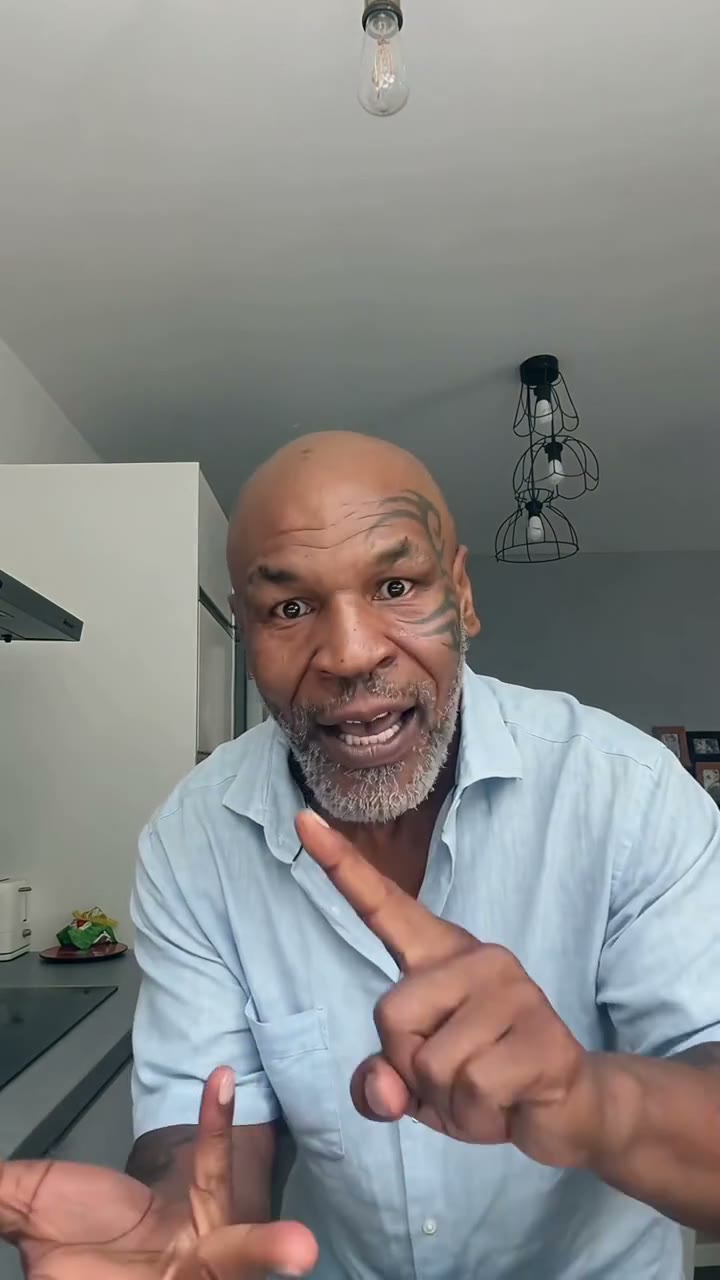
A light-blue-shirt reference in a kitchen, with pointing, a forward lean and open-palmed gestures. The 15-second vertical clip shows how the routine moves between a wider view and a close-up.
A black-T-shirt reference using the same playful argument-style routine. The plain outfit makes the pointing hands, shoulder movements and changes in expression easy to follow over the 15-second clip.
A costume reference with a bandana, long hair and layered pirate-style clothing. It follows the pointing-and-shrugging routine and shows how an elaborate character look can sit inside the same dance.
A red-jacket reference with quick changes between pointing, palms-up gestures and a step back from the camera. The bright outer layer keeps the silhouette visible during the 15-second vertical routine.
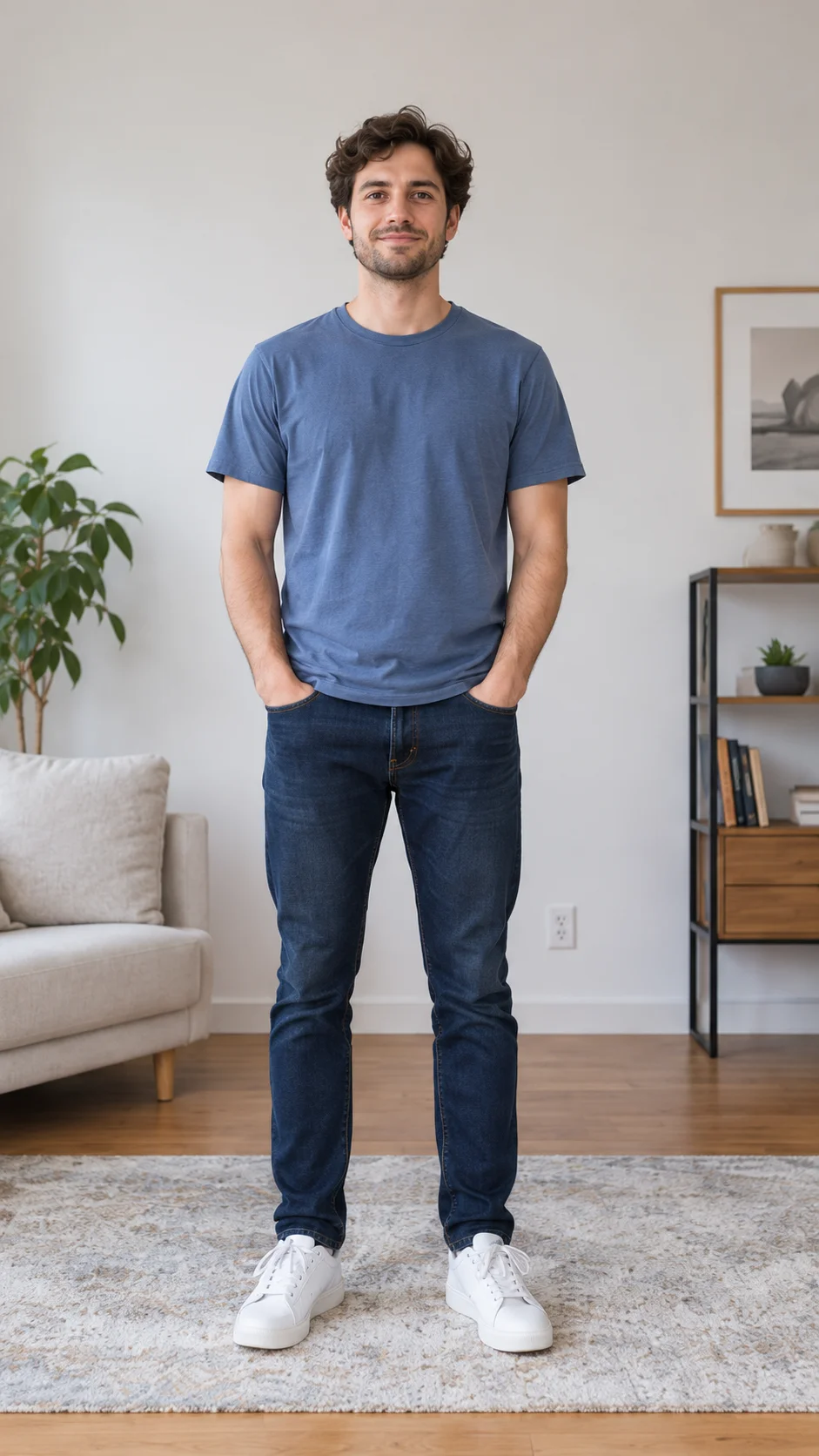
Choose a photo with one adult, a visible face and enough of the body in frame. Upload from this device, or open the iPhone QR link and send a photo from your phone to your computer.
2
Check before you generate
Review the selected photo and confirm that you have permission to use it. When paid generation is available, the price appears before checkout. One purchase covers one video; there is no subscription.
3
Download and share your video
Once generation finishes, open My videos and save the MP4. Videos expire after 24 hours, so keep a local copy. Check the face, hands and motion before posting to TikTok, Reels or Shorts.
A sharp photo gives the video model a clearer starting point. A full-body or waist-up photo is more useful for this routine than a tiny face cropped from a group shot.
One person, facing the camera. Avoid group photos and overlapping faces.
Show shoulders, arms and some space around the body for bigger gestures.
Use even light and a sharp original. Avoid sunglasses, heavy blur and strong face filters.
Keep hands and important clothing details visible. Fine accessories may change during motion.
Preview the gesture-heavy routine before you make a reaction video, a playful character clip or a short social post. The vertical references help you judge the framing. Review the finished file before uploading, and use music and images you have permission to share.
Learn the small things that improve the result
Practical instructions for making the effect, choosing a photo and fixing common photo-to-video problems.
It is a photo-to-video effect based on an exaggerated argument-style dance: pointing, shrugging and leaning toward the camera. Here, “filter” describes the visual effect; you are not installing a live camera filter.
How do I make an Angry Dance video from one photo?
Upload a clear photo, review the permission checkbox and continue. When video generation is available, review the one-time price and start the job. The finished video appears in My videos. Our step-by-step guide explains each stage.
Can I use Angry Dance online without CapCut?
The upload flow works in your browser, so you do not need a separate video editor to prepare the photo. Angry Dance is an independent website and is not an official TikTok, CapCut or Instagram filter.
Is the Angry Dance generator free?
You can watch the reference examples and try photo upload without paying. Actual video generation is pay per video when available. We show the price before payment and do not offer an automatic subscription.
Can I upload a photo from my iPhone?
Yes. On your computer, choose Upload from iPhone. Scan the QR code with your phone camera, choose a photo and send it. The photo appears on the computer for review. The link works once and expires after 10 minutes.
What photo formats can I upload?
JPG, PNG, WebP and HEIC are supported, up to 12 MB. Use one clear adult subject. A full-body or waist-up image usually gives the model more useful information about the clothes and pose.
Will my video look exactly like the examples?
No identical result is guaranteed. These are supplied reference clips, not outputs created by this site. AI may alter facial features, fingers, clothes or the scene. Watch the examples to understand the motion and check your result before sharing.
Can I share the video on TikTok, Reels or Shorts?
Save the finished MP4, preview it on your phone, then upload it to the service you use. Check that the crop keeps the face and hands visible. Use audio you have permission to share and check the platform’s current AI-content rules.
What happens if video generation fails?
A failed generation returns the video credit to your account, so it can be used again. That is a returned generation credit, not an automatic cash refund. Check the status in My videos before starting another job.
How long are my photos and videos kept?
Uploaded photos and generated videos expire after 24 hours and are removed during cleanup. Download a finished video if you want to keep it. Phone upload links expire after 10 minutes and cannot be reused.
Start with one photo
Watch the examples, choose a clear photo, and check the result before you share it.

 15-second reference